Diagram
The Diagram page (/modules/database/diagram) draws the tables of one schema and the relations between them. Pick the schema in the top-left picker, or open the page from a table with ?schema=<schema>&table=<table>.
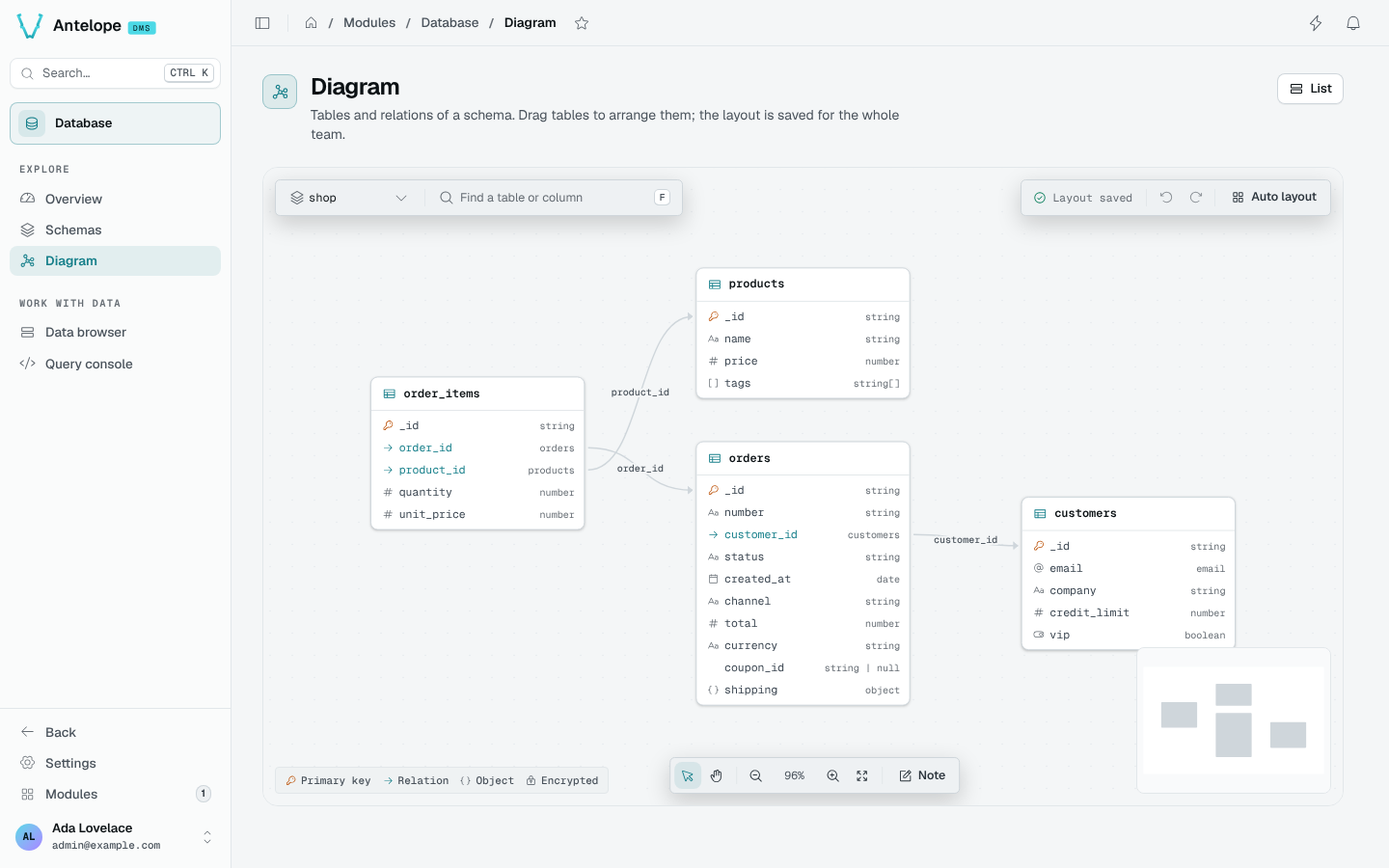
Read the diagram
Each table lists its columns with their types. Icons mark the primary key, relations, objects and encrypted columns; the legend sits at the bottom-left. A relation is drawn as an arrow from the column to the table it points to; a relation to a table that is not drawn (another schema, or one the search leaves out) ends on a dashed chip that opens that table.
Arrange the layout
Drag tables to arrange them. The layout saves itself (Layout saved) and is shared by everyone who opens the diagram. Auto layout previews a computed arrangement first: keep it or go back to yours. Undo and redo cover every move.
Notes
Note (or N) drops a sticky note on the canvas. Double-click a note to write in it. Notes are saved with the schema and shared with the team.
Keyboard shortcuts
| Key | Action |
|---|---|
F | Find a table |
N | Add a note |
V / H | Select / pan |
1 / 0 | Fit the diagram / reset the zoom |
Ctrl Z | Undo |
Ctrl Shift Z, Ctrl Y | Redo |
Esc | Step back |
The DMS Shortcuts settings page lists them with every other module's shortcuts.