Sends
The send log lists every e-mail of the workspace: to whom, with which data, in which locale, and what the provider reported back. Open it from Mailing › Sends; its sidebar badge counts the sends with a problem.
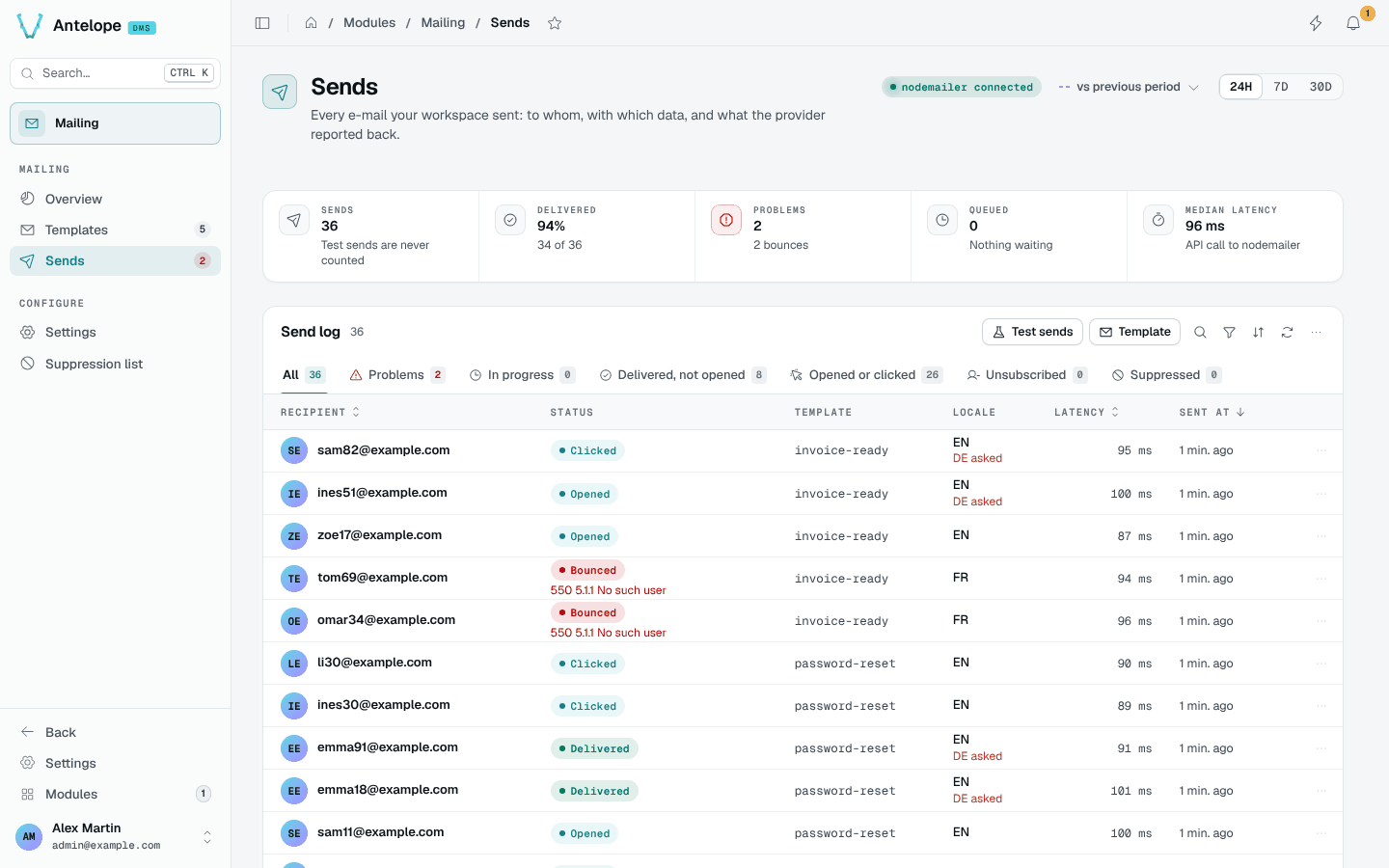
Stat strip and tabs
The stat strip covers the selected period (24 hours by default, 7 or 30 days): sends (tests never count), delivered, problems, queued and the median latency of the provider call.
The tabs follow each send's stage: All, Problems, In progress, Delivered, not opened, Opened or clicked, Unsubscribed and Suppressed. The Test sends and Template filters narrow the list.
The Locale column shows the locale sent; when it differs from the one asked for, it says so (DE asked), so fallbacks are visible.
Send details
Click a row to open its details.
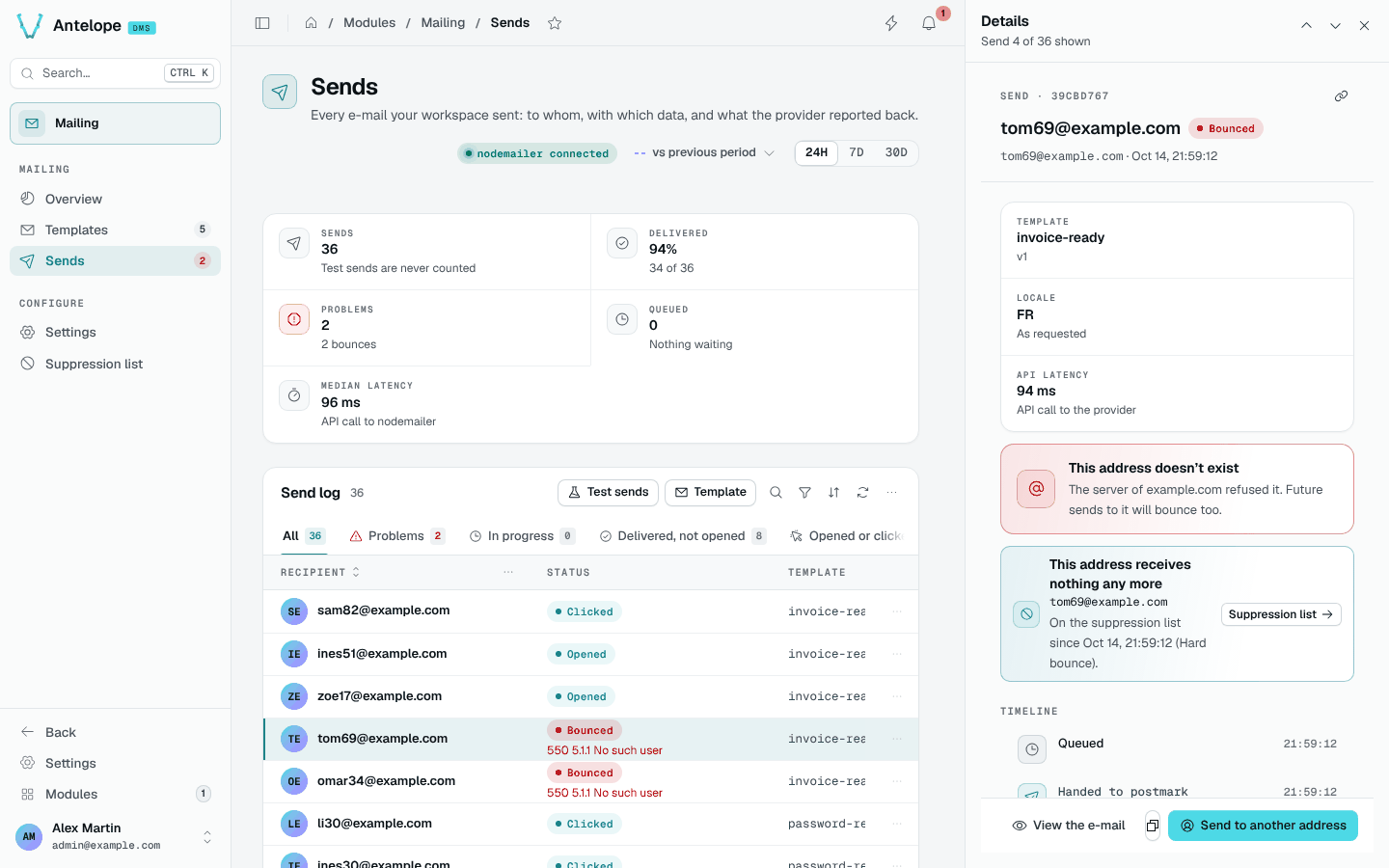
- Origin: the template and its version, the locale and the API latency.
- Problem banner: what went wrong in plain words ("This address doesn't exist"), and whether the address is now on the suppression list.
- Timeline: queued, handed to the provider, delivered, opened, clicked, with the provider's raw answer.
- Data sent, with Copy JSON, and View the e-mail, re-rendered from the stored version and data.
The footer adapts to the status: Send to another address after a bounce or a spam report, Send again… after a provider failure (confirmed with the recipient, the version and the last error).
Provider problems
When the provider cannot be reached, or provider failures piled up in the last hour, a banner above the log links to the provider settings and offers to send those failures again. Bounces are never resent this way.