Translation matrix
The matrix shows every key of the workspace as a row and every language as a column. Open it from Translate › Translation matrix. Its sidebar badge counts the missing translations of the project files.
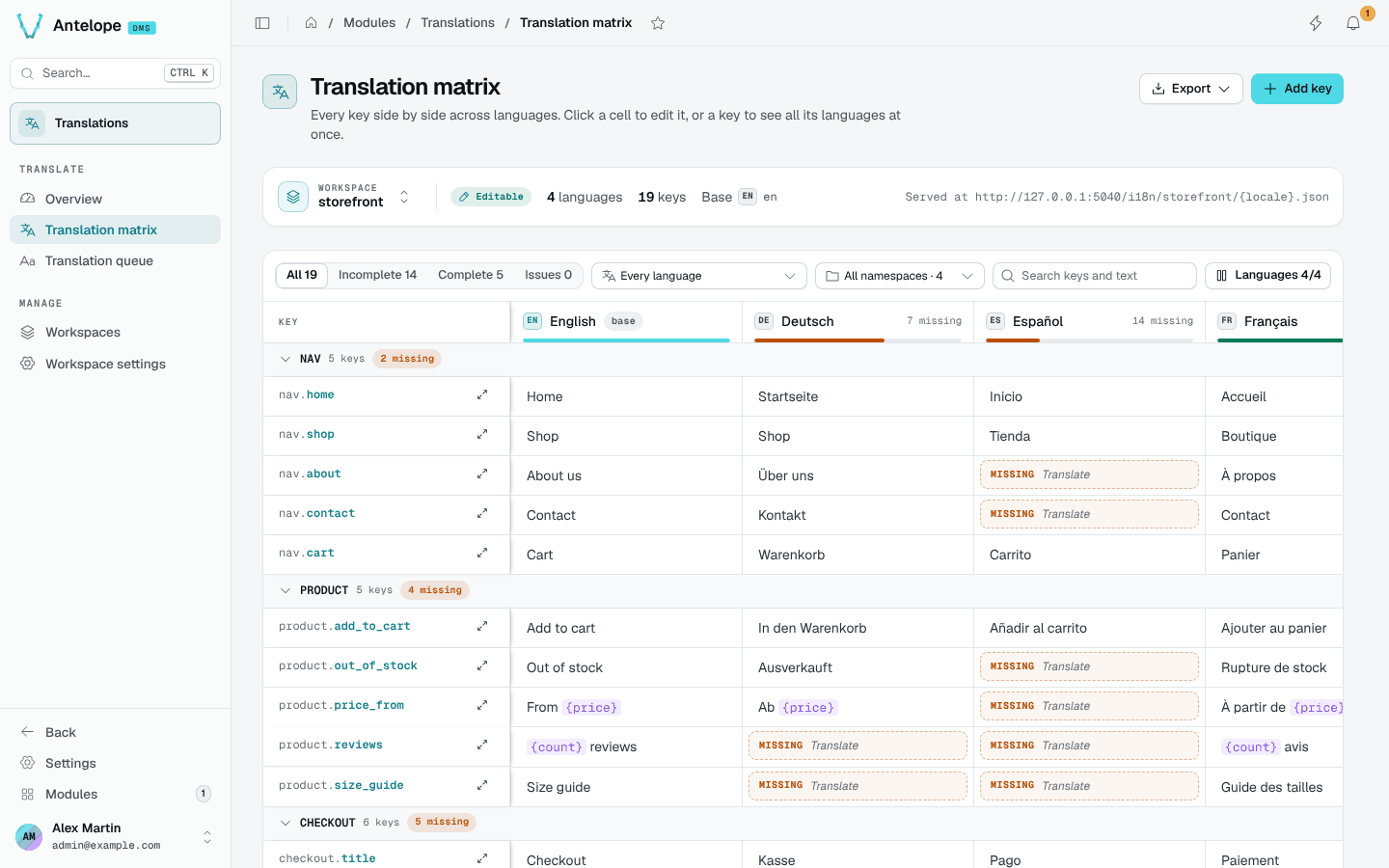
Find what to translate
- Status tabs: All, Incomplete, Complete and Issues (cells whose placeholders differ from the base text).
- Missing in: keep the rows missing in one language, or in any language, whatever columns are shown.
- Namespaces: restrict the rows to one or more namespaces. Rows are grouped by namespace, and each group can collapse.
- Search: match key paths and texts.
- Languages: choose the columns to show. Each column header carries its missing count and a coverage bar.
The matrix draws 150 rows at a time; Show more loads the next ones, so large workspaces stay responsive.
Edit a cell
Click a cell to edit it in place.
| Shortcut | Action |
|---|---|
Enter | Save and move to the next row. |
Shift Enter | Add a line break. |
Escape | Cancel. |
Each cell shows its own state (saving, saved, or not saved with Retry), and keeps your text when a save fails.
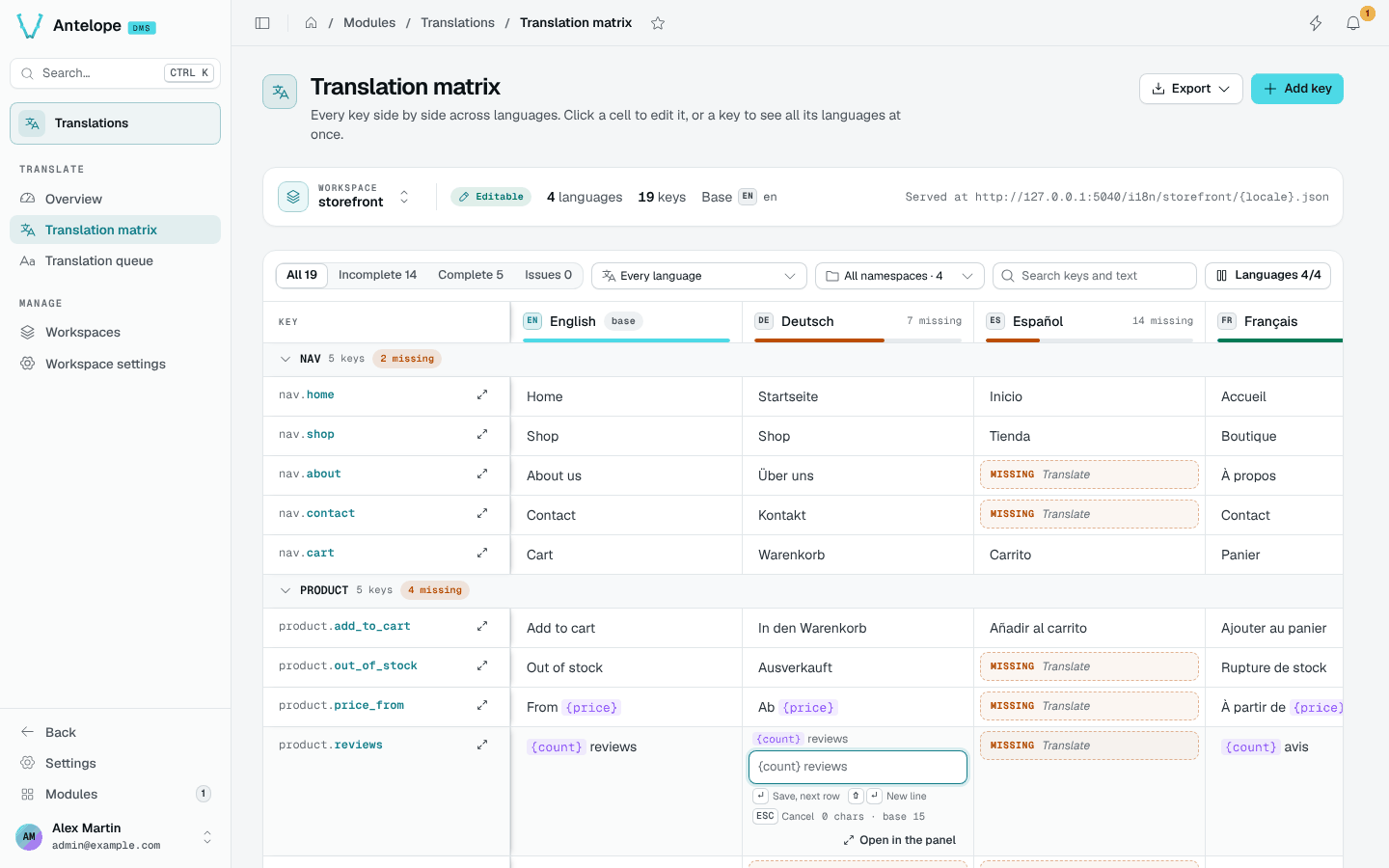
Placeholders such as {price} render as tokens. A cell whose placeholders differ from the base text is flagged, in the matrix, the key panel and the queue.
Work on one key
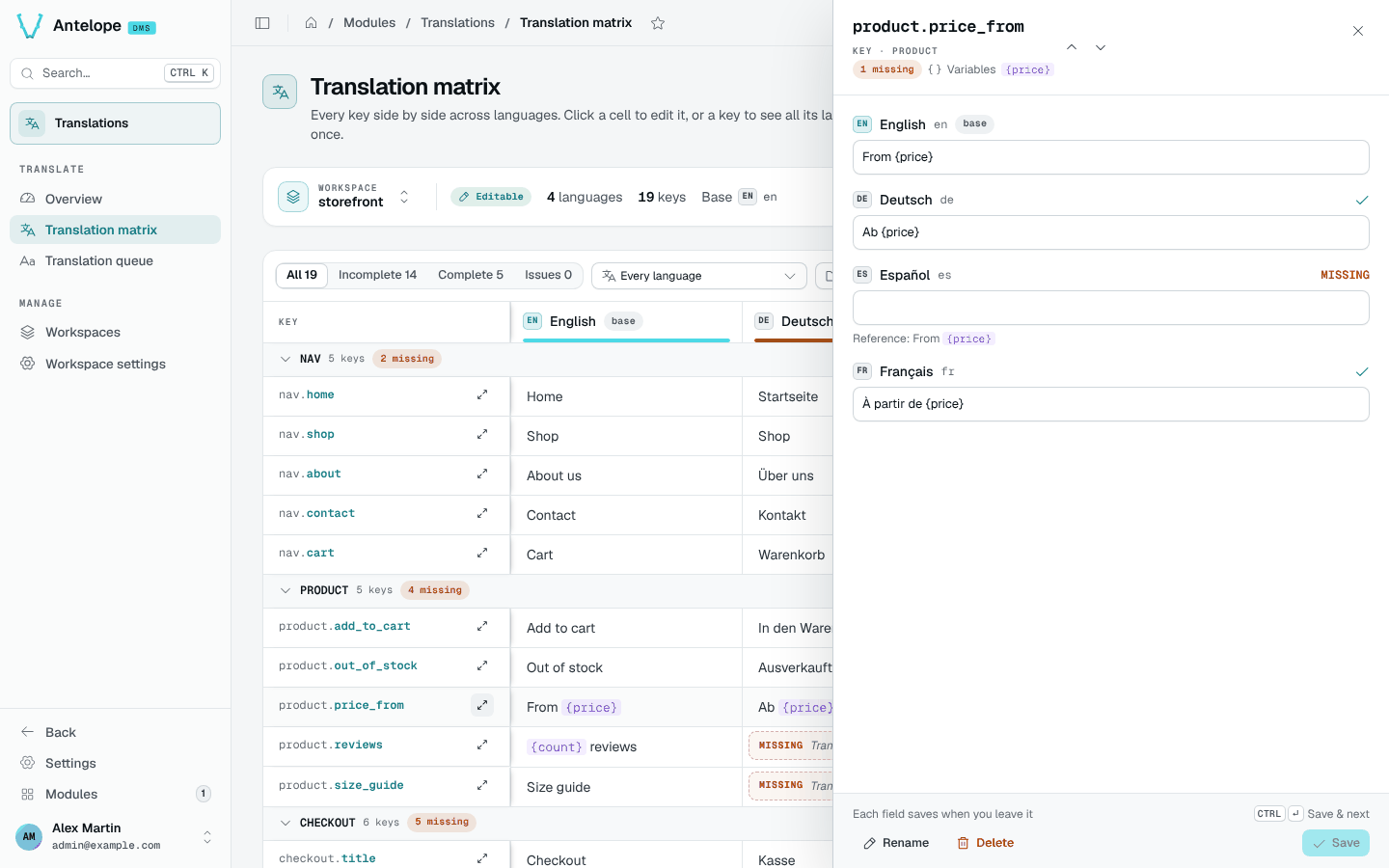
The expand icon next to a key opens the key panel. Use it to:
- Edit every language in a stacked view, with the base text as reference.
- Check placeholders and use Insert {token}.
- Move to the previous or next key.
- Rename or Delete the key.
Save writes every changed language in one request.
Add, rename and delete keys
Add key asks the key path and its base text; Add another keeps the dialog open. Deleting a key lists the translations it removes, and the toast offers Undo.
Installed modules
In the Installed modules workspace the matrix is read-only. Each row has an Override button: it switches to the project files and opens the key there, so your project redefines the text. Rows already overridden carry an Overridden badge.
Open dms.button.save_changes in the key panel to see its module values and the Override action.
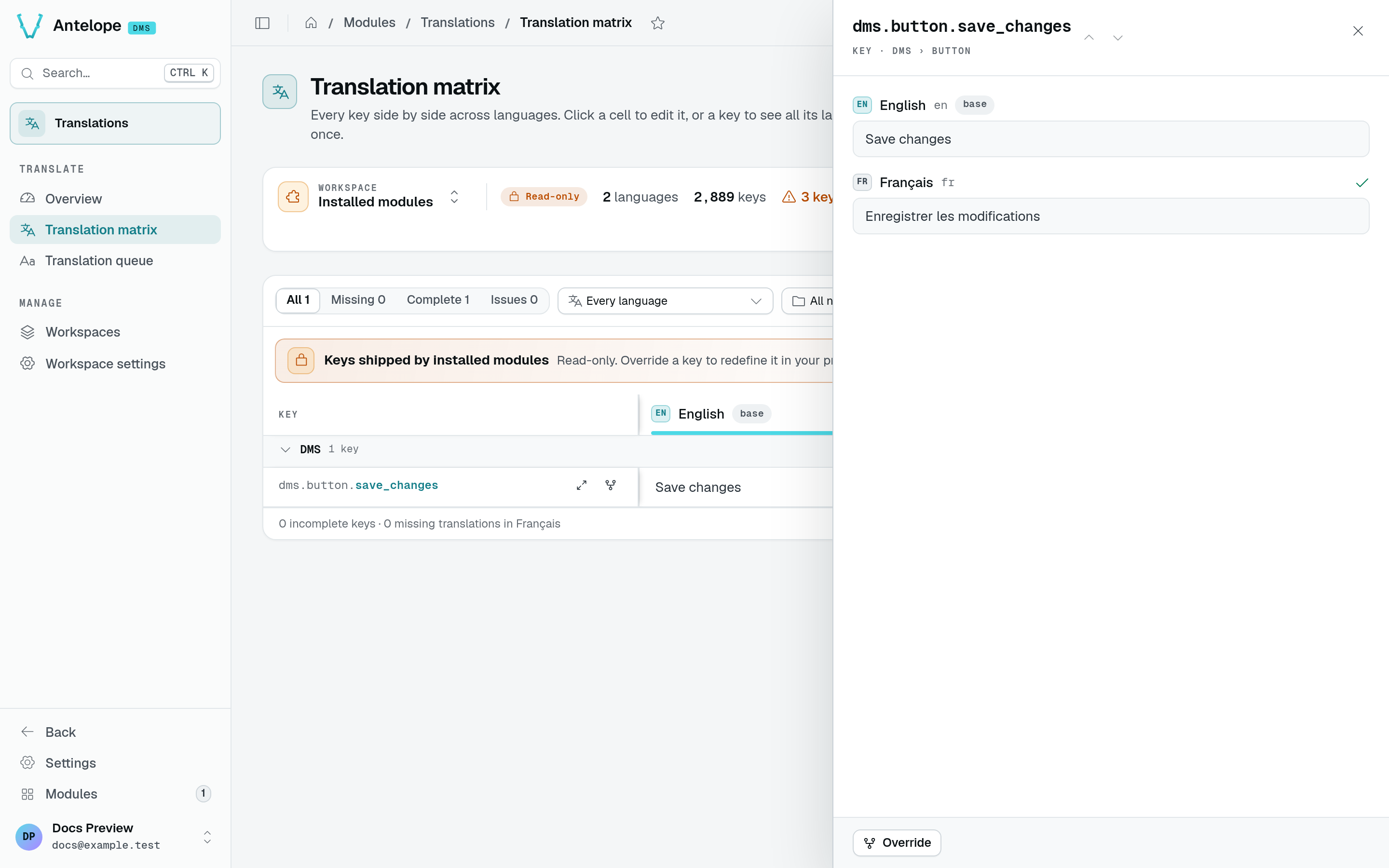
After Override, the same key opens in Project files. Here, the French value is saved as Enregistrer mes changements, while English still comes from the module.
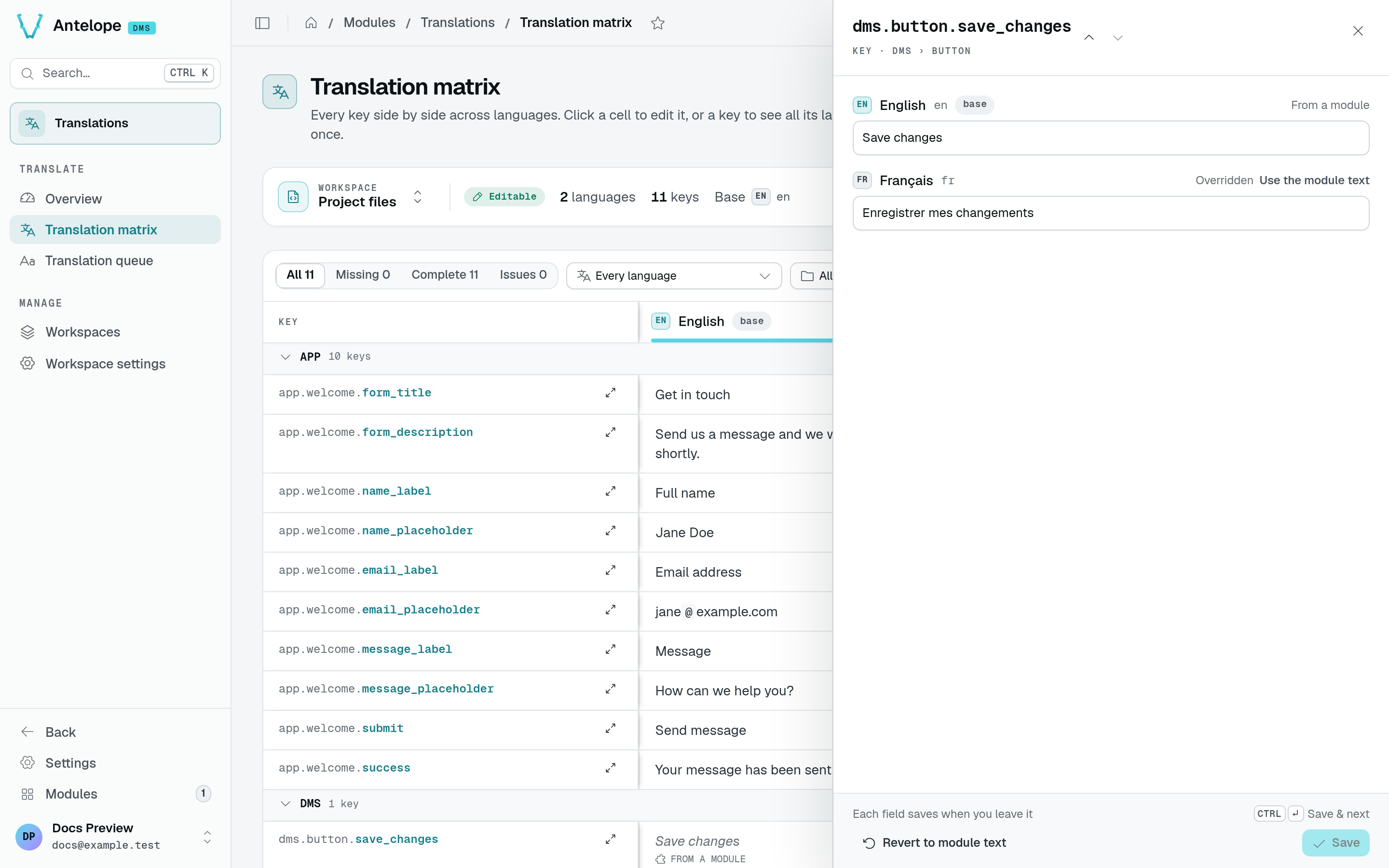
The project replaces the French value without modifying the installed module. Override opens the editor; editing and saving a value creates the project override.
Export
Export downloads the workspace as CSV (the key and one column per language), generated in the browser.