Chat
Ask the assistant for a change from any page, approve what it asks, and review or undo each change set from the conversation.
The chat is a panel docked next to the page, and the page shrinks to make room. The panel stays open across page navigations and reloads, and it follows the dashboard's theme. To open or close it, click the sparkle Assistant button in the dashboard header, or press Ctrl Shift K (⌘ ⇧ K on macOS). Drag its edge to resize it.
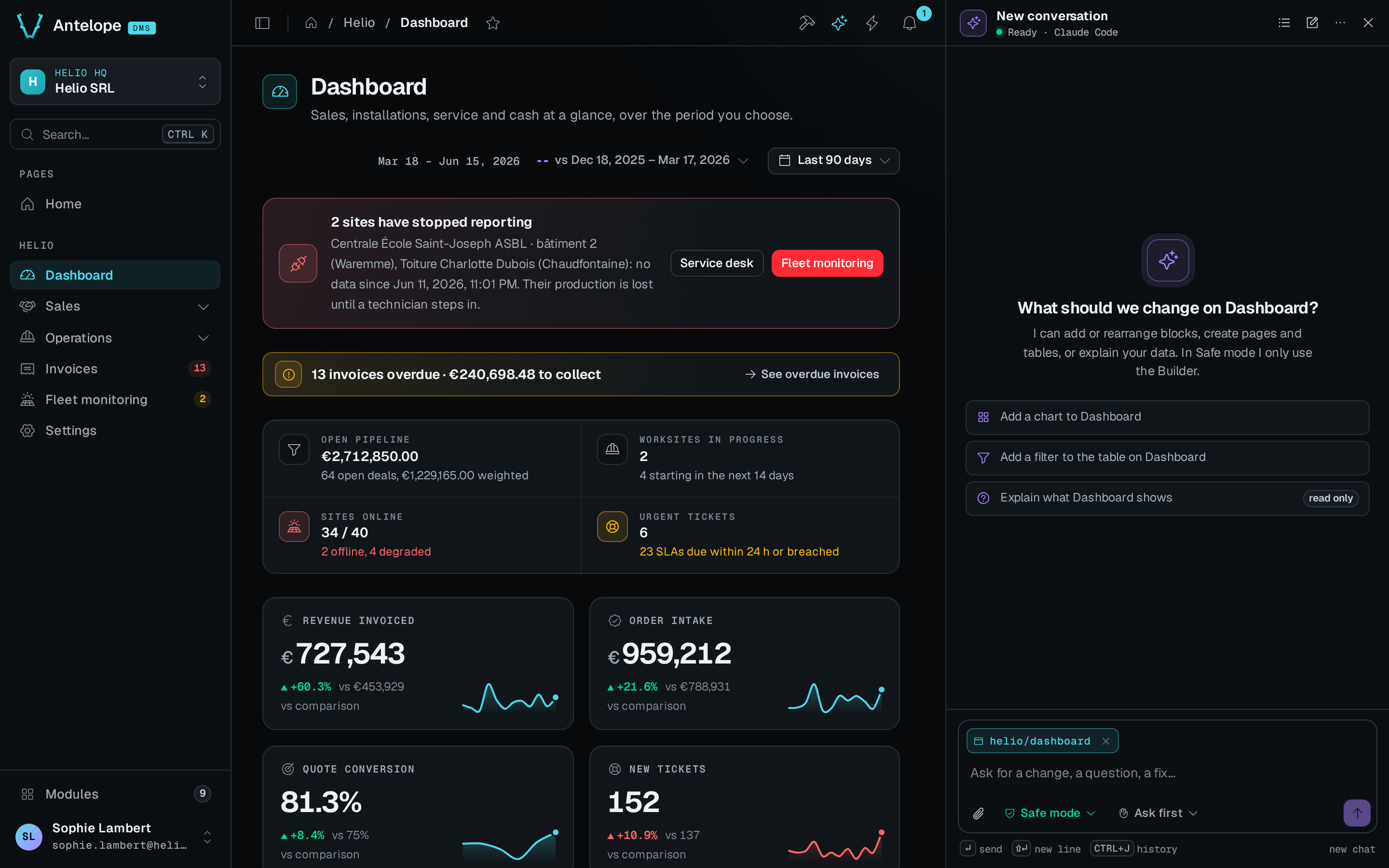
The Helio demo, before the first message. The sidecar is ready, and no model request has run yet. Opening the panel does not check your provider credentials. If the launcher is missing, see Installation.
Ask for a change
The composer sends the current page with your message. A chip in the composer shows the page path, and its close button removes it. Type a request and press Enter. Shift Enter adds a line.
A new conversation offers three starters that fit the page on screen. On the home page, they are Create a page to list and edit a new kind of record, Create a table with its API routes, and Explain how this project is organised. On a module page, they offer to add a block, rename labels, or explain the page. On any other page, they offer to add a chart, add a filter to the table, or explain the page. The explain starters are marked read only.
Under the text field, three controls set this conversation only:
- The scope. Safe mode changes the project through the builder tools only. Code mode may edit any project file.
- The approval mode. Auto review (Claude Code only), Ask first, Accept edits and Plan only. A new chat starts on Auto review with Claude Code and on Ask first with Codex.
- The attachment button, to add files such as a mockup or a screenshot. You can also drop files on the composer. A message takes up to 10 files of up to 25 MB each.
To open the list of conversations, press Ctrl J (⌘ J on macOS) or click the history button in the panel header. In the list, / focuses the search. The header also has New conversation and a More menu with the rules allowed in this chat, Open changes, Open activity and Settings.
Follow a turn
While the assistant works, it groups its tool calls under a header such as Used 6 tools, followed by the distinct actions (read file · edit file · run command) and the time the group took. Each row shows one call with its state: running, done, waiting for you, denied, blocked by safe mode, failed or stopped. The latest three rows stay visible, and a button reveals the earlier ones.
While a turn runs, Enter queues your next message, and the queue runs after the turn. Esc stops the turn. The agent can also send the dashboard to the page it edits, so you see the page reload as it changes.
In Plan only, the turn ends on a Proposed plan card with its steps and the note Nothing has changed yet. Click Run with Ask first to carry the plan out, or Edit plan to change it.
When the assistant asks you a question, a question card shows in the panel. It shows Question 1 of 2 and the question's topic, the suggested answers, Other… for your own words, and Skip, you decide. Pick an answer, then click Next or Send answers.
Read the change set card
Each turn that changed the project ends on a change set card. The card reads Applied · checkpoint 1, then the counts, such as 3 files changed · 3 Builder operations, and the time and the number of changed lines. Below that come the typecheck result (Typecheck, Typecheck failed or No typecheck), and each file with its path, its status (new, changed or deleted) and its added and removed lines. An Auto-fix tag marks a set from an auto-fix turn. May include changes from another chat marks a set that ran while another conversation also changed files.
- Review diff opens the diff of the set.
- Undo restores the files to the checkpoint. When later change sets touched the same files, a dialog titled Later change sets touch the same files lists them. Choose Undo them together or Undo this one only.
- After an undo, the card reads Undone · checkpoint 1 restored, with the time and the name of the person who undid it, and offers Redo.
When its own edit breaks the build, the assistant starts an auto-fix turn before it hands back. A note reads Auto-fix turn 1 of 2., lists the errors and has a Stop auto-fix button. The assistant makes at most two auto-fix turns.
Answer requests
In Ask first, the assistant asks before every command, read-only ones such as ls and cat included, and before any change outside the Builder.
In Accept edits, the assistant applies file edits unasked, except edits of dependency files, git hook files and project configuration files. It asks before every command, read-only ones included. With Codex, Accept edits works as Ask first: it asks before every file edit and before any command that writes.
Plan only changes nothing.
In Auto review, a safety check handles reads inside the project, routine file edits, web access and sub-agents. It approves the routine ones and blocks the risky ones, and the Activity page tells the two apart (Allowed by Auto review, Blocked by Auto review). Everything else asks you:
- Every shell command or scheduled task.
- Every read outside the project.
- Every tool that acts outside the chat, and any tool a Claude Code update adds.
- Every edit of a dependency or package-manager file (
package.json, a lockfile,pnpm-workspace.yaml,.npmrc,.pnpmfile.cjs,.yarnrc,.yarnrc.ymlorbunfig.toml), while Always ask for covers dependencies.
When the model, your plan or a setting does not allow Auto review, the chat shows a notice and asks first instead.
The DMS MCP server holds some builder calls until someone confirms them: deleting pages, tables, fields, categories or queries, mapping a database again when it would remove a page, and changing antelope.config.ts. It refuses the first call, which the steps show as held until you confirm, and the agent repeats the same call at once. Before that repeat runs, the chat asks you on a card, in every mode, Auto review included. For a configuration change or a mapping, the card shows in full what the DMS previewed, such as the diff of antelope.config.ts or the pages the mapping removes. Until the held call runs, every call to that tool in the same conversation asks first, whatever its arguments. For a configuration change or a mapping with other arguments, the card says another call to the tool is waiting for your confirmation, and lists the call's own arguments. A held call that fails before the DMS's confirmation step, such as a failed preview, keeps asking, as the DMS still holds it. One that fails after that step stops asking. If you allow it, the call runs. If you deny it, the call does not run, and the agent is told that you declined.
These actions ask in every mode, Auto review included:
- Adding or removing dependencies, while that toggle is on under Always ask for in Settings.
- Removing or moving Builder blocks, while that toggle is on under Always ask for in Settings.
- Editing a git hook file: anything inside a
.gitdirectory (hooks and config, those of submodules and worktrees included),.husky/*, a lefthook config file or.pre-commit-config.yaml. The Always ask for dependencies toggle does not apply to them. - Editing a project configuration file:
antelope.config.ts, anantelope.*.jsonfile or a file under.antelope/, which AntelopeJS core reads a module's configuration from, the URL of each database included. No toggle turns this off.
With Codex, the sandbox is read-only in every mode, so every write asks. A request for one of these never offers to allow the next one for the rest of the chat. A card for a git hook file or a project configuration file offers no rule that would let the next edit through unasked.
A request shows in the panel under Needs your approval · 1 of 1, with a countdown such as denies in 4:59. Its card names the action, for example Run and the command, and the effect, such as adds a dependency. Review opens the card with the diff, the full command or the address. Then answer the request:
- To allow more than this one request, pick a rule under Allow, such as Every edit to this file or Commands starting a prefix. Only this edit, Only this command and Only this request allow the one request.
- Click Allow (or Allow edit, Allow command, Allow request), or press
Enter. - To refuse, click Deny or press
N. To refuse and tell the assistant what to do instead, click Suggest a change, type the instruction, then click Deny and send.
With several requests waiting, J and K move between them, and Deny all and stop refuses them all. A rule lasts until the chat ends or the assistant restarts. The More menu lists the rules allowed in this chat. Select a rule there to revoke it.
A deletion card lists the arguments of the call. To run it, click Delete. When deleting a table also clears its stored data, the card shows Data loss, and Delete stays disabled until you type the table's name. A call that keeps the data shows keepData set to true and no Data loss. Undo restores the code, not the data.
If nobody answers within the delay set in Settings, the request is denied. A note says that the request expired and was denied, and the assistant is told why. Ask again sends the request back to the assistant. A denied call reads denied in its tool row, and the turn goes on without it.
When a request arrives while the panel is closed, a toast names it, with Review and Later. The toast needs Notify me in the DMS, which is on by default.
Ask from the command palette
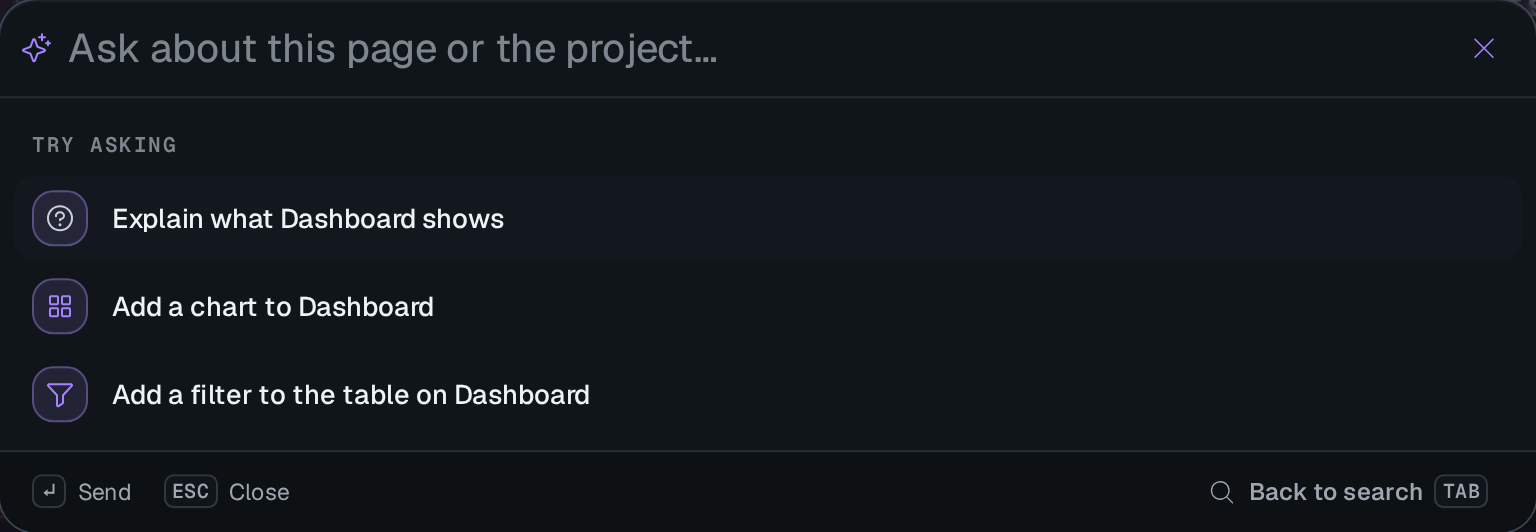
Open the command palette with Ctrl K (⌘ K on macOS). Its Assistant group has Open the assistant, New conversation, Review approvals with the number waiting, and Open changes.
To ask a question without the panel, press Tab in the palette to switch to the assistant, then type the question. The answer is read-only, labelled Read-only answer · Plan only, Safe mode. To keep going, click Continue in the assistant, which moves the conversation to the panel.
What the chat renders
The chat treats nothing the agent writes as markup:
- Markdown renders with raw HTML off, then an allowlist sanitizes it.
- Links go only to
http,httpsormailtoaddresses or to a page of the dashboard, and they open in a new tab. - An image the model writes shows as a link.
- The agent can send the dashboard only to pages of the dashboard's own origin.
Block previews
To compare layouts before the assistant changes a page, ask for alternatives, for example "Show two layouts for this page before changing it." You can attach a mockup to compare with.
When the assistant offers a preview, the conversation shows a Block preview card with its title, a thumbnail, and a line such as 3 blocks · 2 variants · vs your mockup. To choose a direction:
- Click Preview on the card. A dialog opens.
- Compare the variants. The dialog has a tab for each variant. Each tab shows your mockup next to the DMS blocks pane, which renders the real blocks with your dashboard's theme.
- Close the dialog and answer the assistant's question in the chat.
Switching tabs changes only the preview. It applies no layout to your page.
A view can show a custom sketch in place of DMS blocks. The thumbnail then carries a Custom sketch badge, and the dialog labels the pane as a custom sketch that is not a DMS block. A sketch is static HTML and CSS. It proposes a component, and it changes nothing in your project. When the dashboard has no DmsBlockPreview component, the dialog says that this DMS version cannot draw block previews and shows the tree the assistant sent as JSON.
Previews stay in the conversation. Attached mockup images do not stay on the server. After a reload, the dialog says the mockup can no longer be shown, and you attach it again to compare. An external image URL shows as Open the mockup, a link that the dashboard does not load.
Sketches cannot run scripts or submit forms. For payload limits, theme variables and CSP troubleshooting, see Preview constraints.