Media
Library
Browse, search, upload and organise files in the Finder-style explorer.
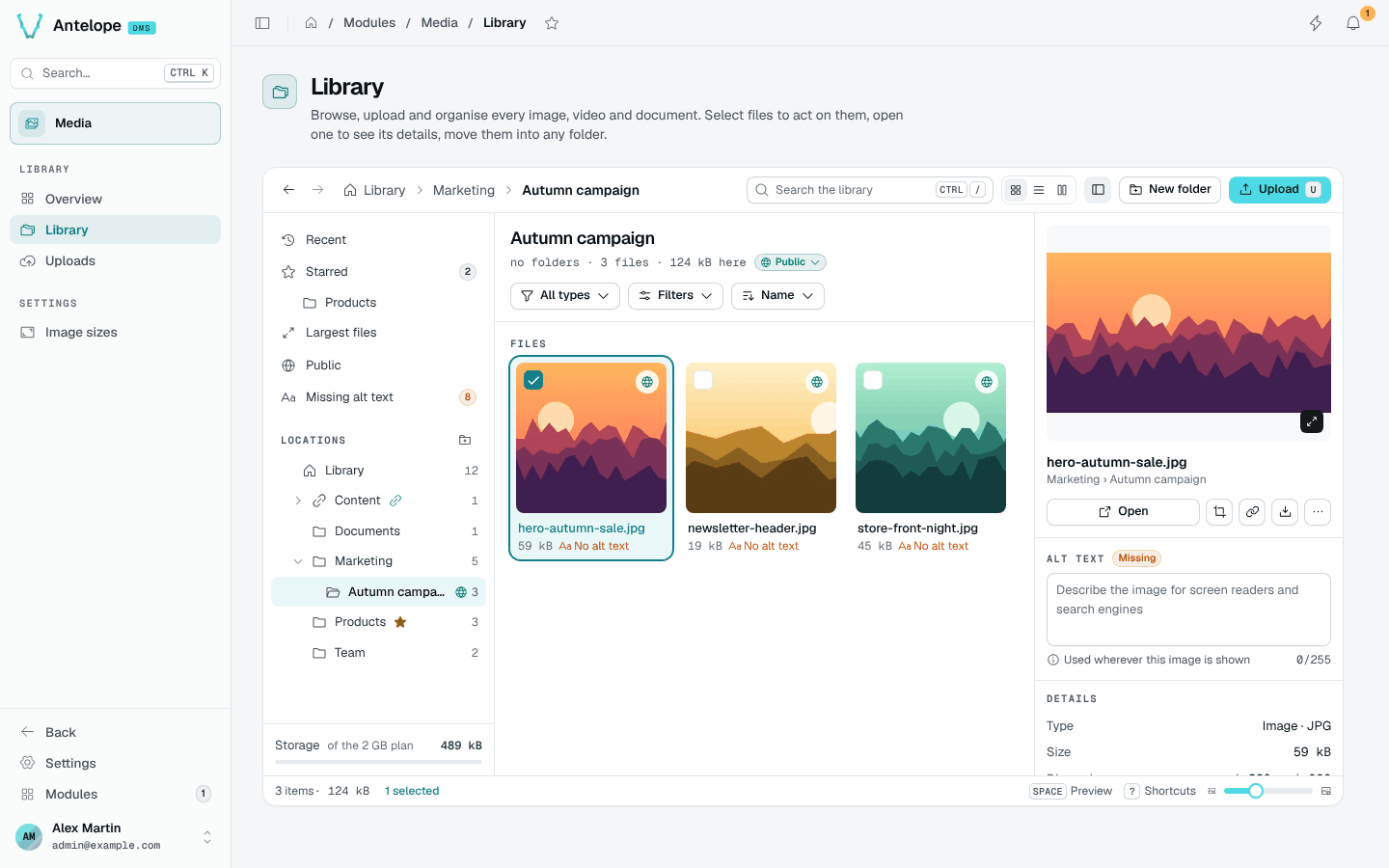
The Library page (/modules/media/files) is a Finder-style explorer of every folder and file. The same explorer opens as the picker of an asset field.
Navigate
- Views: Recent, Starred, Largest files, Public and Missing alt text. Views can stay inside one folder.
- Locations: the folder tree. A linked folder (feeding a field of one of your pages) shows a link icon; starred folders show a star.
- Search: names, alt text and folders, ignoring accents, case and word order.
- Facets: type, visibility, modification date and orientation, plus the sort order.
- Display: grid, list or columns, with a thumbnail size slider, and a details panel for the selected file. Thumbnails are the
thumbsize, cropped square; SVG files use the uncroppedpreviewsize and fit inside the tile, so a wide logo shows whole. Other files, PDFs included, show an icon of their type.
Act on files
- Upload (or drop files on the explorer) sends them to the current folder through the shared upload queue, which keeps going while you navigate.
- New folder creates a subfolder. Names are unique per folder, case aside; an upload that collides offers Keep both (
photo (2).jpg) or Cancel. - Select files to move, change their visibility, delete them, or download them as a zip. A folder downloads as a zip with its subfolders.
- The details panel edits the alt text, opens the file page, opens the image editor, copies the link and downloads the file.
Keyboard shortcuts
| Shortcut | Action |
|---|---|
⌘ / / Ctrl / | Search |
Enter | Open |
Space | Preview |
← → | Previous, next |
Shift ↓ | Extend the selection |
⌘ Space | Toggle the selection |
⌘ ↑ | Parent folder |
U | Upload |
Shift N | New folder |
E | Edit image |
F2 | Rename |
M | Move |
Delete | Delete |
⌘ A | Select all |
Escape | Clear the selection |
1, 2, 3 | Grid, list, columns |
I | Details panel |
? | All shortcuts |
A linked folder cannot be renamed, moved, deleted or re-permissioned: its binding owns it. It holds subfolders only when its binding allows them, and they accept the same types as the field. A name Windows or macOS cannot save is refused.