Mockups
Have the assistant draft your pages as a mockup, comment on it until it looks right, then build it into real pages.
A mockup is a draft of one or more dashboard pages that you review before any code is written. The assistant writes it to mockups/<name>/spec.json in your project. The dashboard draws it with the real DMS blocks and sample data, so the mockup shows only what the DMS can build.
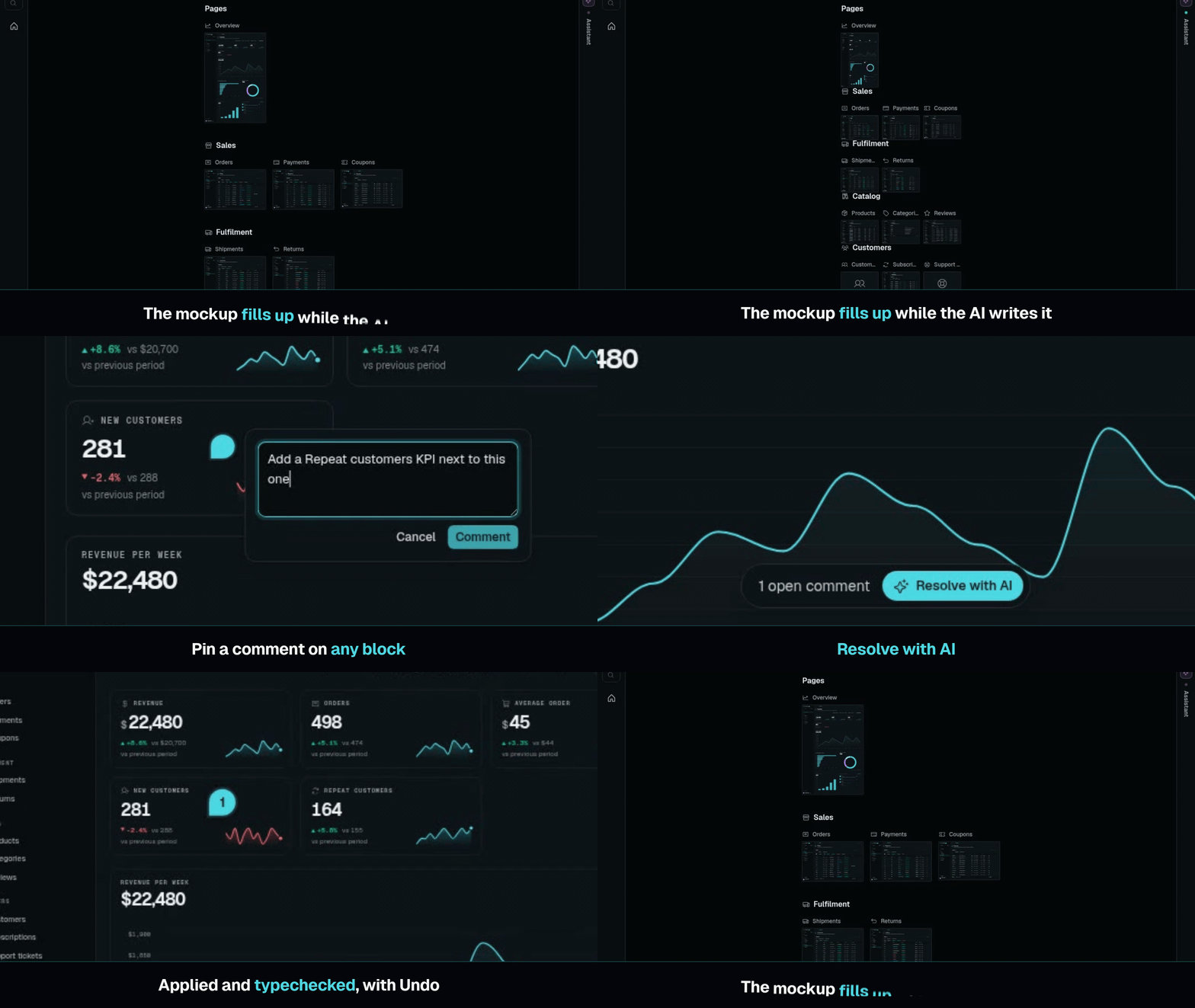
This page shows how to use mockups from the assistant. The DMS docs hold the reference: Mockups for the spec file, Mockup viewer for the viewer and the Mockups page, and Mockup comments and overview for comments.
Ask for a mockup
Start a mockup in one of these ways:
- In the onboarding window, click Start the mockup or Generate a first mockup.
- In the chat, ask for one, such as "Draft a mockup of an order desk with orders, customers and a revenue dashboard".
- On the Mockups page, click New mockup. The chat opens with "Draft a mockup of " in the composer. Finish the sentence and send it.
The assistant asks what it needs, then writes the spec. The viewer opens at /mockup?name=<name> and shows The AI is writing the mockup… until the first page arrives. Pages then appear as the assistant writes them. If you are on another page when the mockup is created, a toast offers Open.
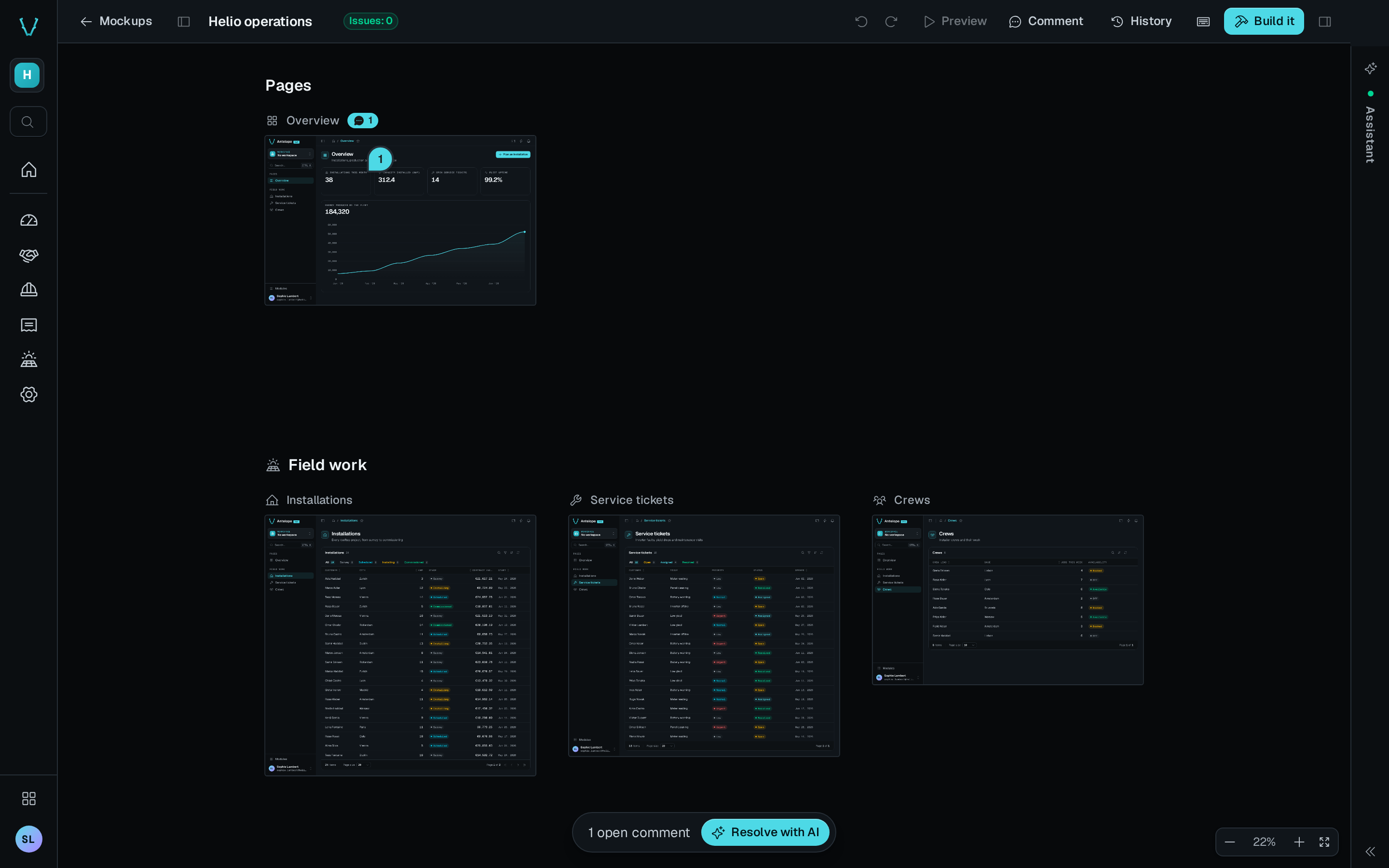
The viewer opens on the Overview, which lays out every page of the mockup on one canvas.
Comment on the mockup
- In the viewer, click Comment in the top bar, or press
C. - Click the block you want changed. A pin drops there.
- Type what should change, then click Comment.
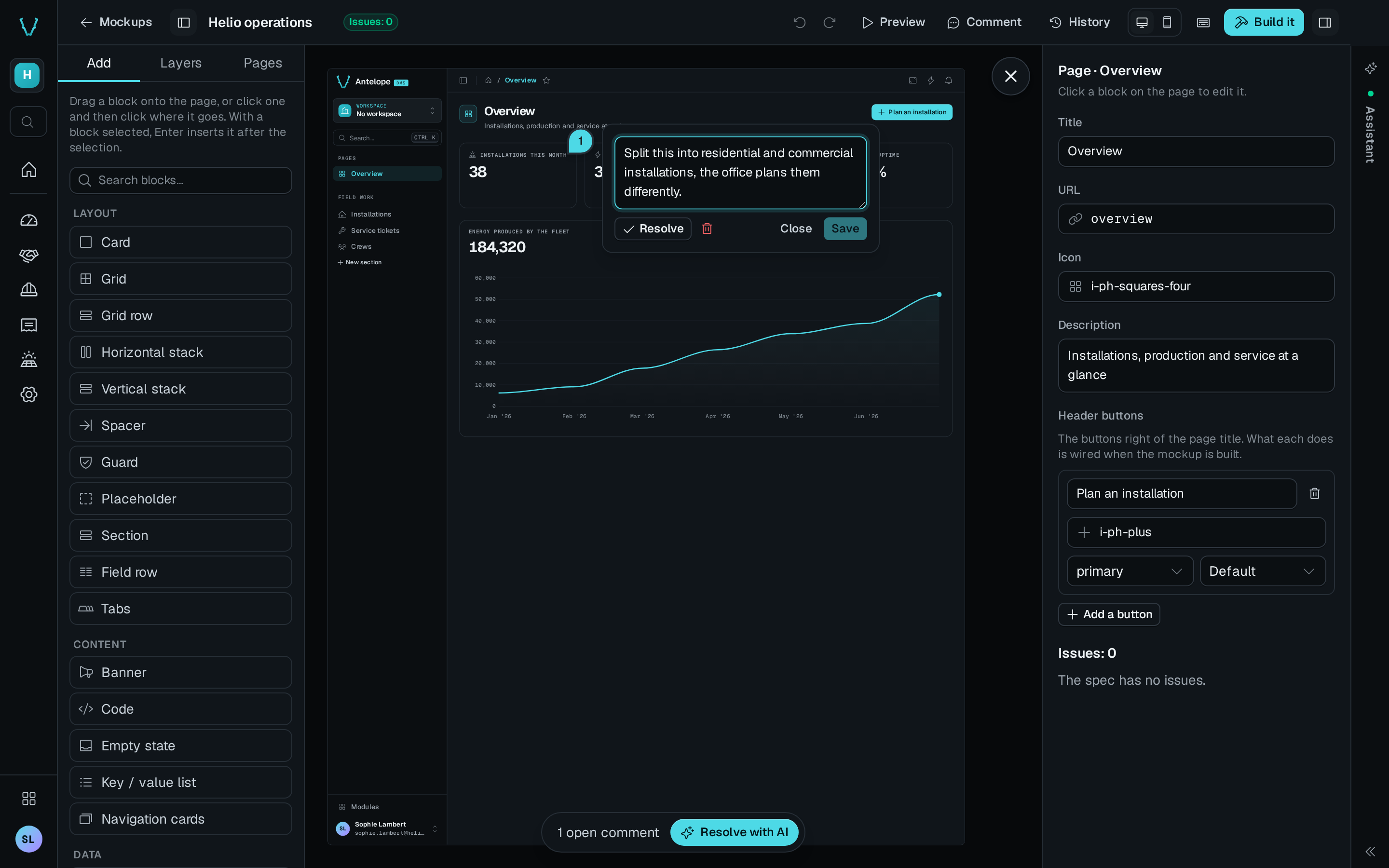
Add as many comments as you need. A bar at the bottom of the viewer counts the open comments.
Resolve the comments with AI

Click Resolve with AI in the bar. The chat opens on a new conversation and the assistant applies each open comment to the spec, then resolves it. It ends with what it changed and the comments it left open, each with its question. While it works, the button reads Resolving… ↗, and a click on it opens that conversation.
To go back to an earlier draft, click History, pick a version, then click Restore. The current version stays in the history.
Build the pages
When the mockup looks right, click Build it in the viewer. The assistant starts a new conversation that builds each page of the mockup:
- It writes each page as a TypeScript
PageController, through the builder tools where they can express the page. - It replaces the sample data with the project's real data.
- It checks each built page against the mockup, fixes what differs, and checks again, at most three times.
The conversation ends with a link to each page it built, and names any page still failing its check. The build is a change set, so you can undo it.
Follow your mockups on the Mockups page
The Mockups page, at /mockups, lists every mockup of the project as a card. Open it from its icon in the dashboard header. Like the viewer, it exists only in development and only for the owner.
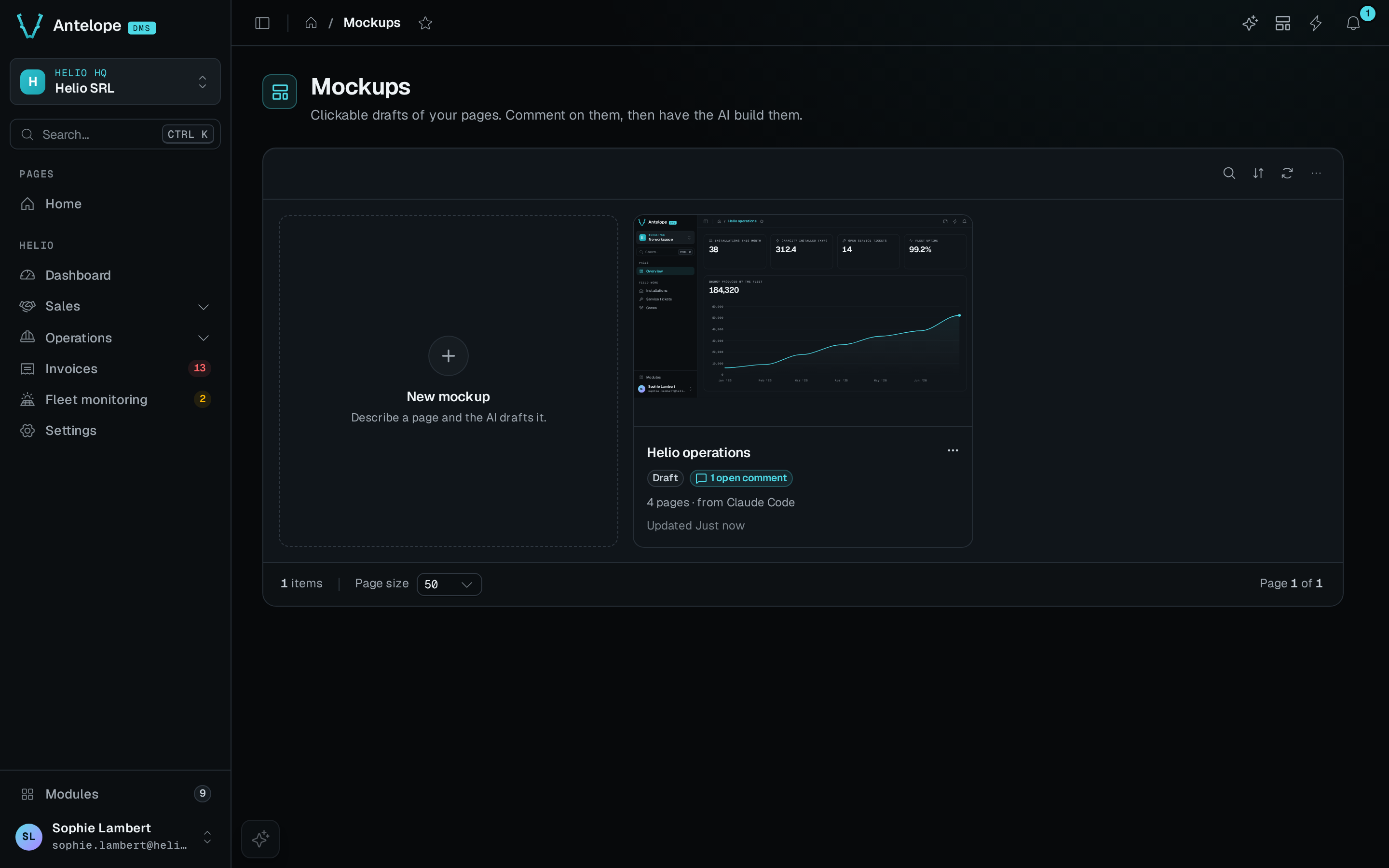
Each card shows the mockup's stage:
| Stage | Meaning |
|---|---|
| Draft | The mockup was never built. |
| 2 of 5 pages built | The build made some of the mockup's pages. |
| Built | The build made every page. |
| Out of sync | A built page changed after the build. Update from page updates the mockup from the changed page. |
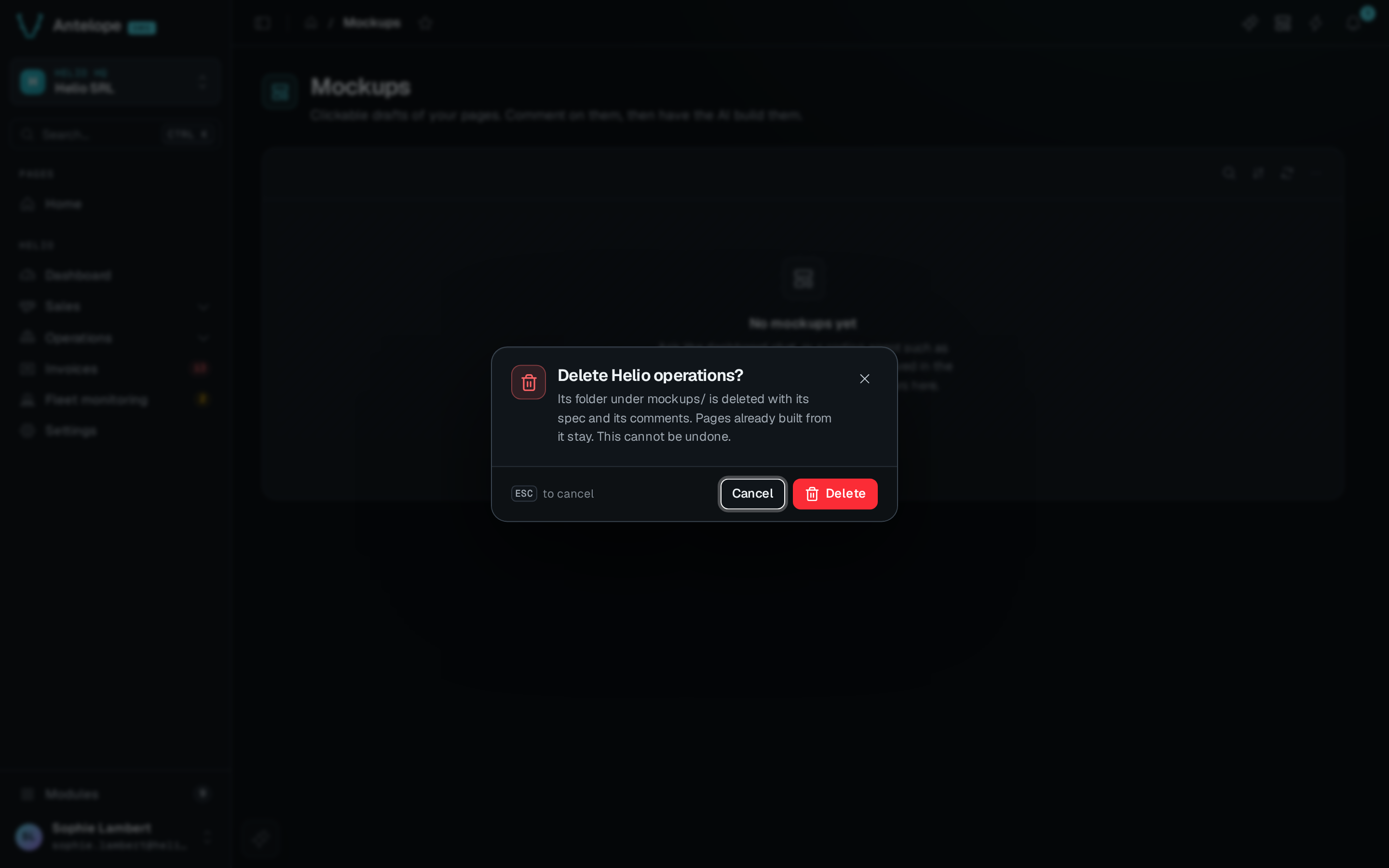
A card also shows the open comments, where the mockup came from (the chat, Claude Code or Codex), and a link to each built page. Its ⋯ menu has Open, Rename, Duplicate and Delete. Deleting a mockup keeps the pages already built from it.
Mockups from your own Claude Code or Codex
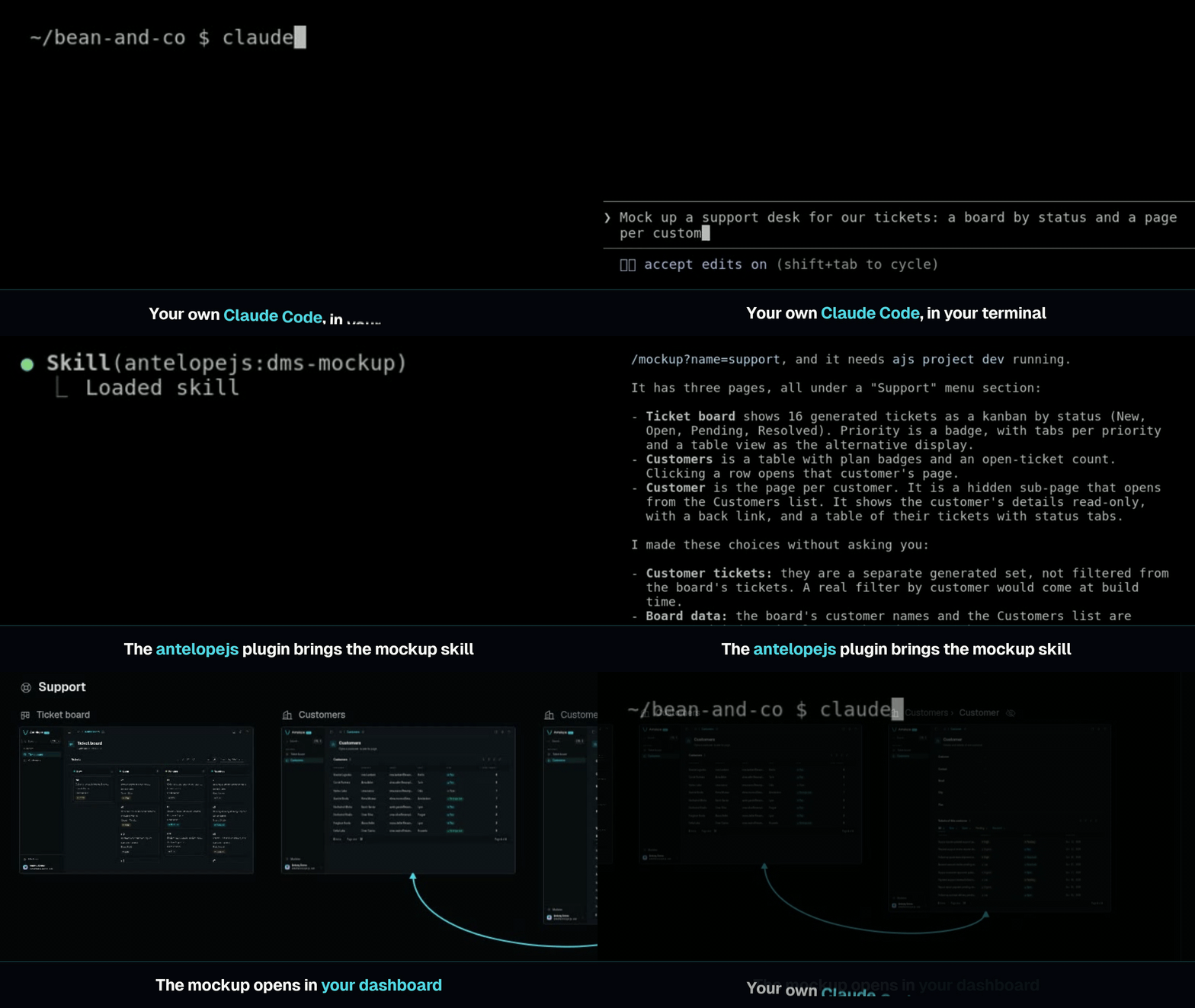
With the antelopejs plugin, your own Claude Code or Codex session gets the same dms-mockup and dms-mockup-build skills and the dms mockup tools. The mockup it writes opens in the same viewer, and its card reads from Claude Code or from Codex.
When the assistant module is not installed, no assistant takes the request of Resolve with AI or Build it. The viewer shows the request under Ask your AI instead, for you to copy into your own agent.