Settings pages
Add a page under workspaceSettingsCategory to place it alongside Members and Roles. The DMS supplies the settings navigation and layout; you only declare the page's content. Use a personal memberAccess category instead when every member should manage their own preferences.
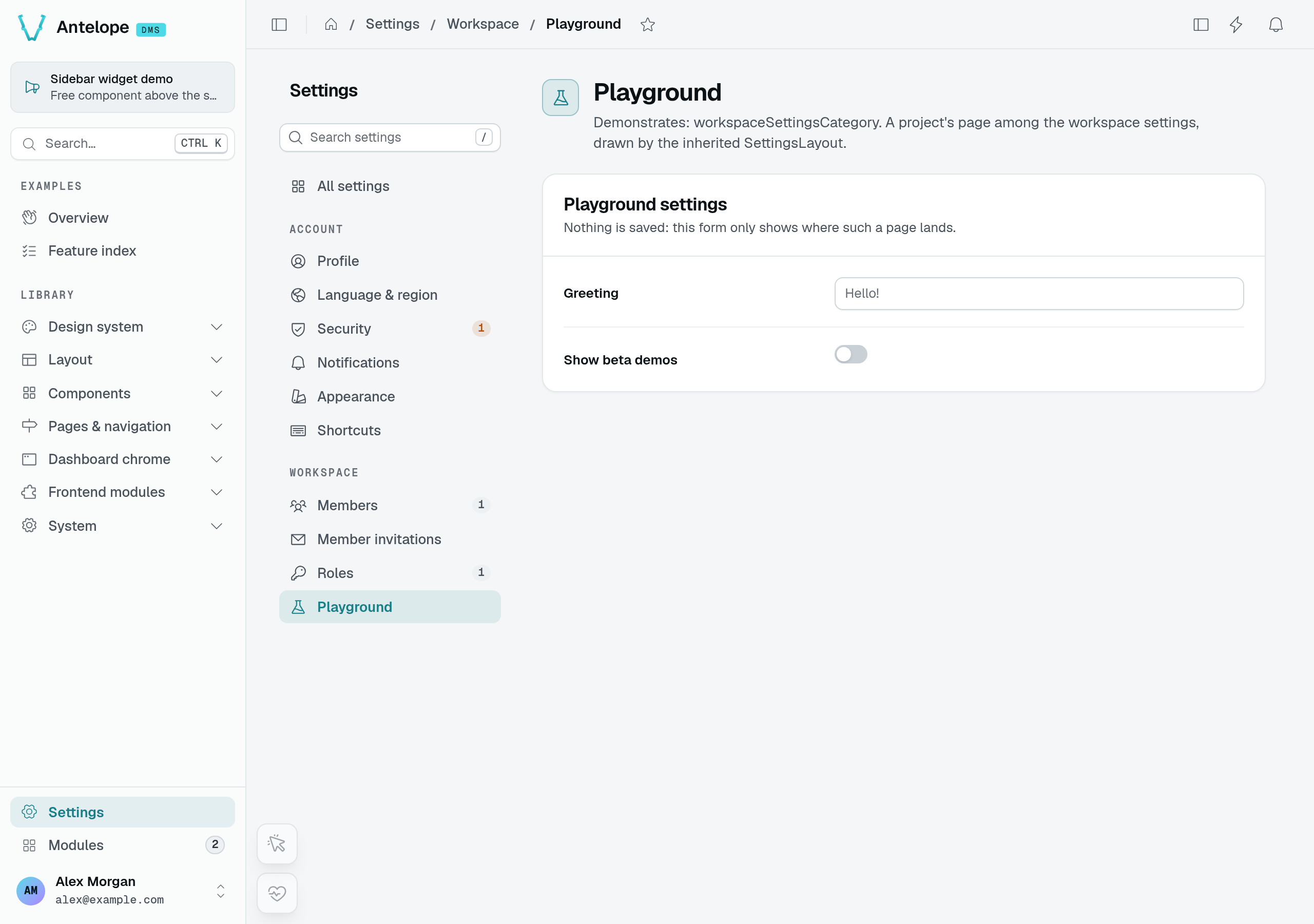
The playground page above inherits SettingsLayout() from the settings root. Your page gets the same frame. For the built-in pages themselves, see Built-in dashboard.
The two categories
The DMS declares two categories under the settings root:
| Category | Id | URL | Pages | Access |
|---|---|---|---|---|
| Account | settings.user | /settings/user | Profile, Language & region, Security, Notifications, Appearance, Shortcuts | memberAccess: every signed-in member, no role needed |
| Workspace | settings.workspace | /settings/workspace | Members (and Member invitations under it), Roles | the page permissions, granted through roles |
workspaceSettingsCategory is exported from @antelopejs/interface-dms/page: a project adds its workspace settings there instead of declaring a settings.workspace category of its own. The Account category belongs to the DMS and is not exported; personal pages of your own go in a category of yours flagged memberAccess (see Personal settings).
The overview at /settings shows the caller's account summary and recent activity, then a card per page of each of the two categories, with its badge (NavCardGrid({ category })). Every member opens it, a member without any role included: the settings root is memberAccess: "self", and the overview lists only the pages its caller can open, leaving out a category they open none of. "self" stops at the overview: a page declared under settingsCategory still needs its own permission, and the Roles editor lists the Workspace pages at the top level, after every other section.
Add a workspace settings page
Declare the page under workspaceSettingsCategory. Its permission works as on any page: a role must grant it, and the Roles editor lists it.
import { TableView } from "@antelopejs/interface-dms/base/table-view";
import { PageController, RegisterPage, workspaceSettingsCategory } from "@antelopejs/interface-dms/page";
import { invoiceDataAPI } from "../../data/invoices";

@RegisterPage()
export class BillingSettingsPage extends PageController("billing", {
  displayName: "$my_app.settings.billing",
  description: "$my_app.settings.billing_description",
  icon: "i-ph-credit-card",
  category: workspaceSettingsCategory,
  order: 3,
}) {
  static invoices = TableView(invoiceDataAPI, {
    layout: "compact",
    tabs: [{ id: "all", label: "$my_app.invoices.all", navBadge: true }],
  });
}
The page answers at /settings/workspace/billing, and its permission id is settings.workspace.billing.
A page that declares a module cannot sit under the settings root: registration throws, and a module keeps its settings in its own sidebar (Distributable module). A module that extends the workspace settings registers its page without module.
Personal settings
A page every member keeps for themselves — their preferences for your feature, their API tokens — sets memberAccess: true, on the page or on a category whose pages inherit it (true passes on to what is declared under it; "self" would open the entry alone):
import { Category, settingsCategory } from "@antelopejs/interface-dms/page";

export const myAccount = Category("my-app", {
  displayName: "$my_app.settings.title",
  icon: "i-ph-user-gear",
  category: settingsCategory,
  order: 3,
  memberAccess: true,
});
// pages declaring `category: myAccount` are open to every member
Every signed-in member holds a memberAccess page, its components and their actions without a role grant. Their permissions are registered as defaultGranted, so they never wait on a role, and the Roles editor does not list them. Every check still runs — guards, menus, table views and the tenant access gate — only the grant is implied. That is the difference with authOnly, which skips the permission checks and registers no ids at all. Keep memberAccess for surfaces that only show the caller's own data: anything on such a page is open to every member of the workspace. Auth & permissions has the full list of access options.
The settings navigation
The settings navigation lists one group per category declared under settingsCategory, in menu order and labelled by the category's displayName, then the pages declared on the root itself. Within a group:
- Order. Pages follow their
order, then their name; a page declared with another page as itscategoryfollows that page (Member invitations after Members). The built-in account pages take the orders 1 to 6, and the workspace ones 1 (Members) and 2 (Roles): give your page anorderto place it. - Visibility. A page shows only to the callers who can open it.
- Badge. An entry shows the page's badge: a static
badgeoption, or the count a table on the page publishes withnavBadge: trueon one of its tabs (Link tabs), drawn neutral or in the tone the count carries (navBadge: { tone: "warning" }, or{ count, tone }from a component's ownnavBadge(...)). The server counts it on each page visit, with the caller's own permissions, and the main navigation shows the same badge. Without a badge, the page'sstatusshows as a dot ("success","warning"or"error"; the settings navigation draws none for"neutral").
The settings frame
Every page under the settings root renders in SettingsLayout(): the settings navigation next to the page, in the column width every settings page shares. settingsCategory declares it as its default layout (Default layout of a category), so pass no layout to a settings page. A page that passes one (DefaultLayout(), FormPageLayout()) opts out of the frame; pass SettingsLayout(options) when the page needs layout options such as headerActions. The form pages a table generates on a settings page stay in the frame.