Comments and review
Review a mockup in the viewer. Browse its pages on the Overview, pin comments on blocks, and hand the comments or the build to the agent.
Review a mockup in the viewer. You browse its pages, pin comments where you want a change, and let the agent apply them.
Browse every page on the Overview
A mockup opens on its Overview. Every page sits on one canvas, in the sidebar's order, under its icon, its title and its number of open comments. A mockup with sidebar sections lays out each section in rows of its own. Arrows join pages that link to each other. A dashed arrow joins a parent to a sub-page it does not link to.
- To move around, scroll, drag with Space held, or use the arrow keys. To zoom, hold
Ctrl(⌘on a Mac) and scroll, or pinch.Shift+1fits every page in view. - To open a page, double-click its frame, or select it and click Open.
- To go back to the Overview, click the ✕ at the top right of the canvas, or press
Esc.
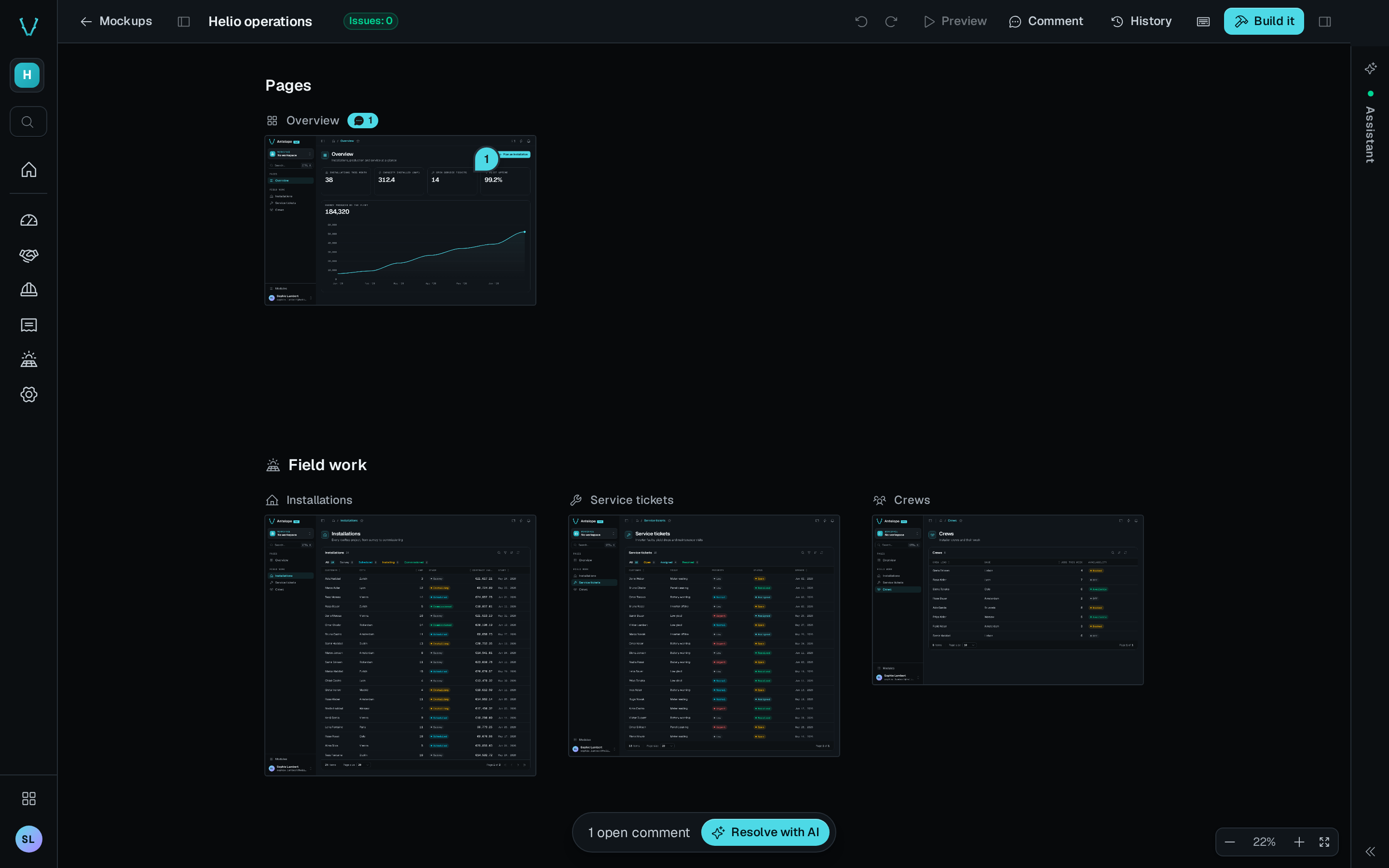
Nothing is edited on the Overview. Comments work there as on a page.
Pin a comment
- Click Comment in the top bar, or press
C. - Click where the change belongs. A dashed outline shows what the comment will be about: the block under the pointer, or the whole page outside every block.
- Write the comment, then click Comment.
A comment on a block follows that block when the agent moves or edits it. It stays at the same spot of the block on desktop and on mobile. A comment pinned on the page header is a comment on the page.
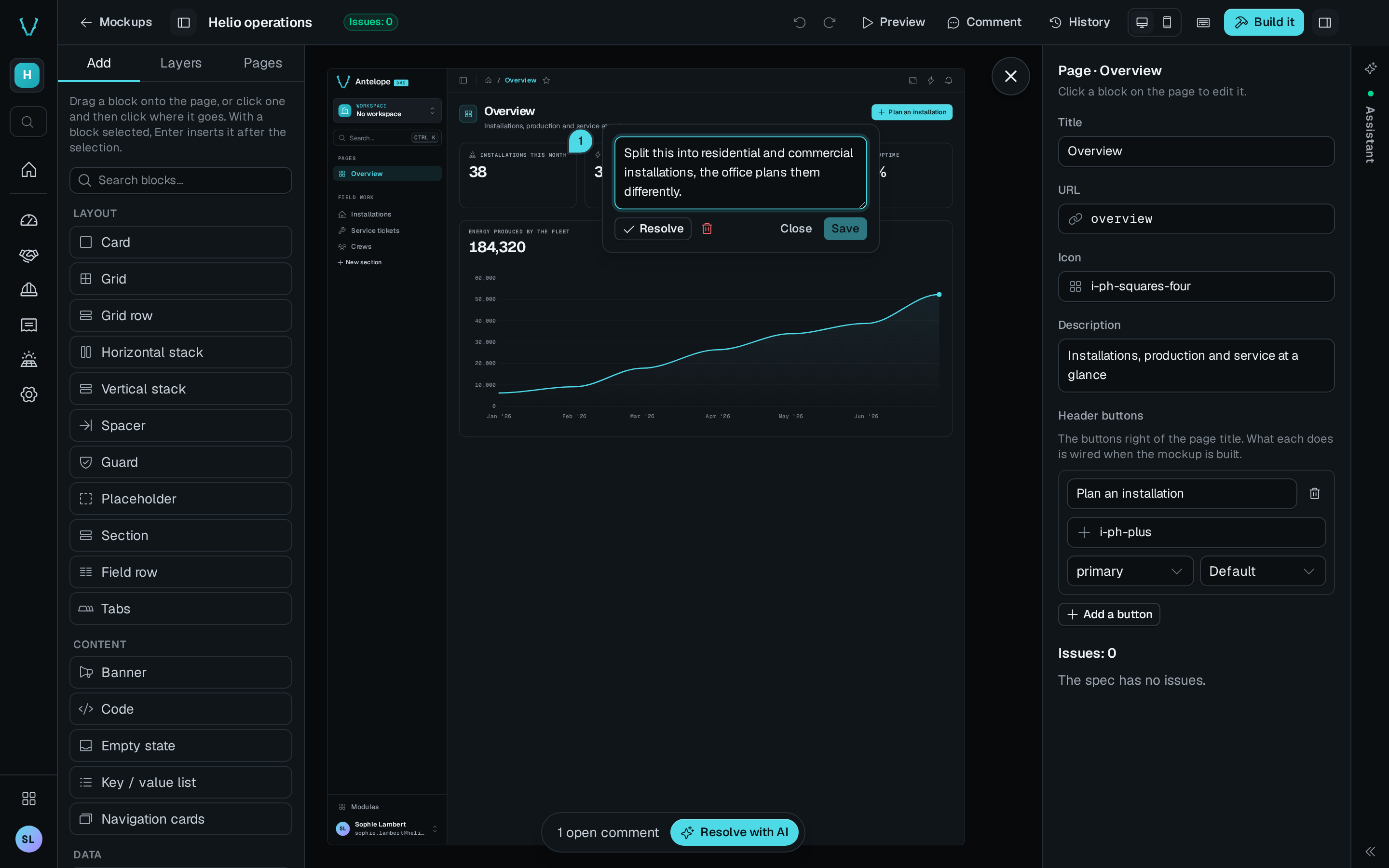
To change a comment, click its pin. The card lets you edit the text, resolve or reopen the comment, or delete it. Drag a pin onto another block to move the comment there.
Only open comments show on the page. A resolved comment stays on the version it was pinned on: open History and select that version to see it.
When the agent removes the block a comment was on, the comment moves to the Comments without a block tray in a corner of the canvas. Drag it onto the page to pin it again.
Hand the comments to the agent
While comments are open, a bar at the bottom of the canvas counts them and offers Resolve with AI. Click it to send every open comment of the mockup to the agent. The agent lists them with mockup_annotations, applies each one with mockup_patch_spec, and resolves it with mockup_resolve_annotation. The viewer redraws the pages as the agent writes them.
The DMS AI assistant takes the request in its chat, which docks beside the viewer. Without the assistant, the button reads Copy the prompt and gives you the request to paste into Claude Code, Codex or another agent.
While the agent works on this mockup, the button reads Resolving… ↗. Click it to open the agent's conversation.
Build the pages
When the mockup is right, click Build it. The agent builds the real pages from the spec, and the button reads Building… ↗ while it runs. The Mockups page then marks the mockup Built and links to each page.
On a page converted from a live page, the build updates that page instead of creating a new one. See Live page mockups.
Go back to an earlier version
Each write of the spec adds a version. Click History to list them in the right panel, with who wrote each one and a summary of what changed.
- Select a version. The canvas draws it read-only, with the comments pinned on it.
- Click Restore to make it the current spec, or Back to current to leave.
Escalso goes back.
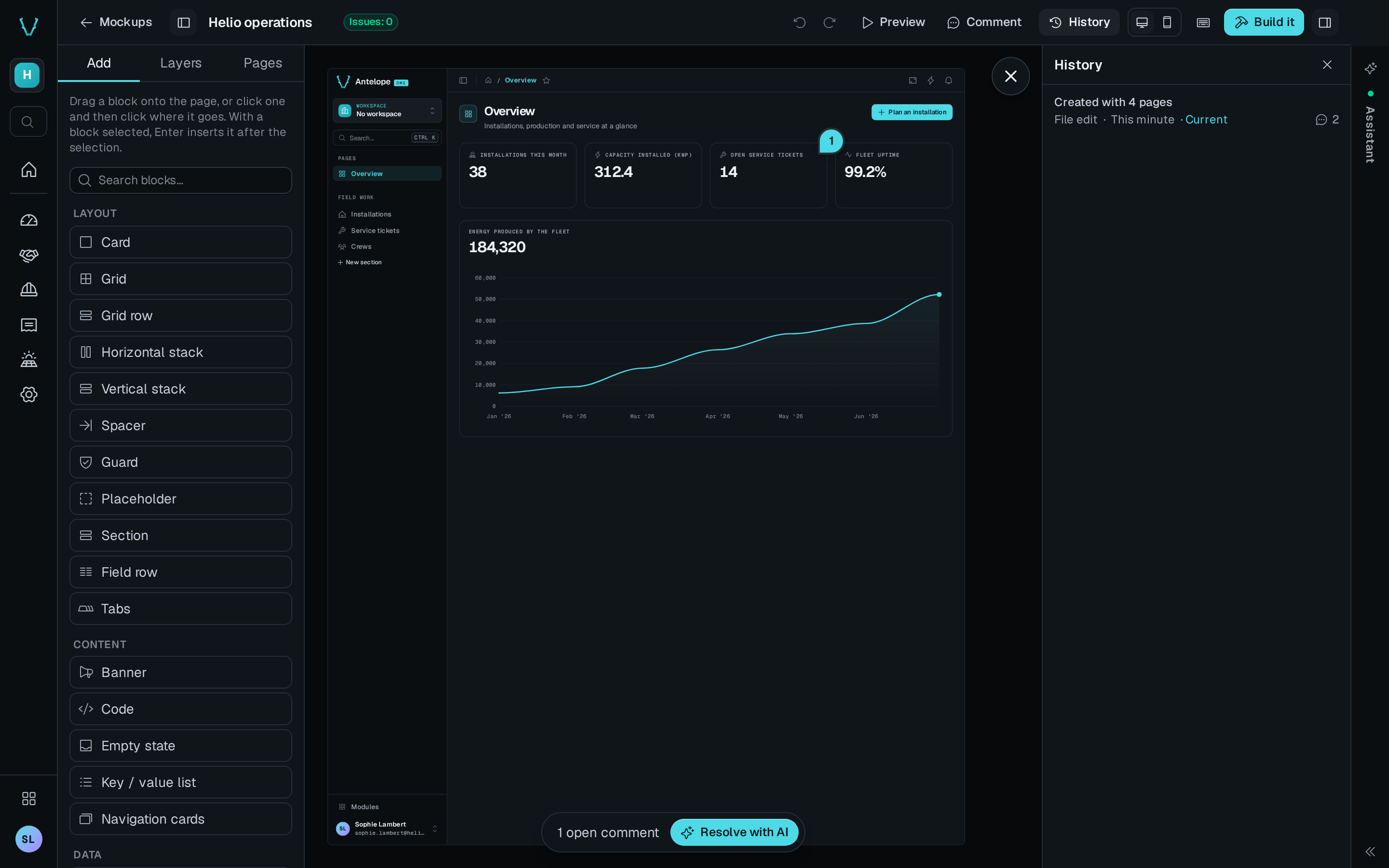
A restore adds a new version and keeps the others. Comments stay on the versions they were pinned on.
Show real data
On a page with live routes, the Real data switch reads the data from your running app instead of the samples. It is on by default for a page converted from a live page. The switch on the Overview sets every such page at once.